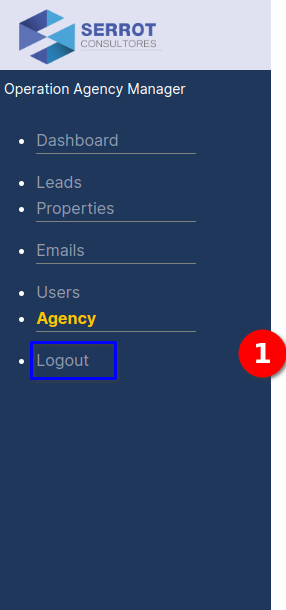
Supplier User
Welcome to the supplier page
Welcome to the Supplier user section, this manual is designed to be easy to follow and use through detailed explanations, illustrations and practical examples, we will provide you with a step by step guide on how to use the Builder CRM system, in this section we will work on the Agency Manager user workflow through the following modules (Dashboard, Approvals, Build Orders).
Supplier Menu
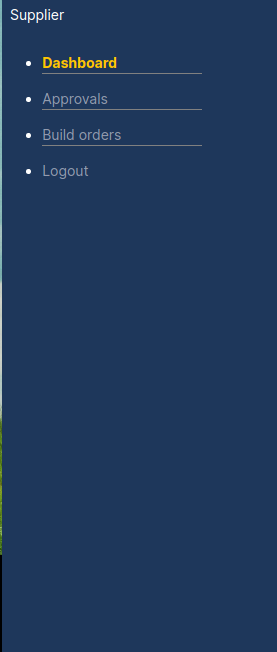
SUPPLIER MENU - APPROVALS
Menu description:
- User type description
- Navigation menu with modules (Approvals, Build Orders)
Supplier Dashboard module
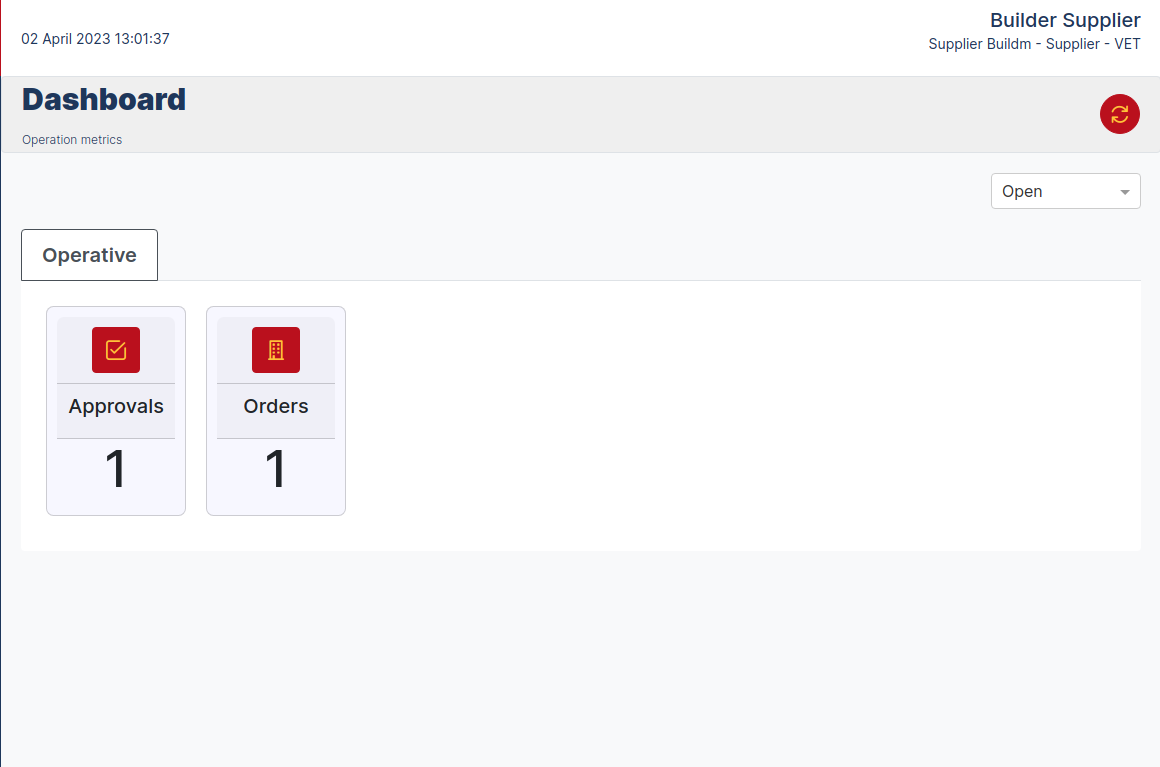
The Supplier Dashboard panel interface features several components that make it easy to use and very convenient. At the top is the top bar, which shows the name of the agency and the authenticated user, along with the date and time. Below this is a frame with the name of the module and a refresh button that refreshes the data on the cards. Additionally, there is a dropdown menu that allows you to filter open, closed, or archived processes, making it easy to find specific information. There is also a tab that refers to the "Operational" part, which allows the user to quickly and efficiently access the relevant information. Finally, there are two Cards ("Approvals" and "Ordres") that serve as links to their respective modules on the Dashboard. Overall, the interface is intuitive and easy to use, allowing the user agency Manager to quickly and efficiently access the information they need.
SUPPLIER DASHBOARD
Supplier User Dashboard.
Interface elements supplier User Dashboard:
- Leads Card Property, has the function of displaying statistics and provides another way to navigate to the referred modules.
- The Operative tab indicates that the module belongs to the operative part of the process.
- Filter of the processes that are "open", "closed", "archived".
- Update the card information.
- Name of the agency and of the logged Manager.
- Date data.
- Name of the module.
List view Approval
The list of Leads view contains the information through a table of the records of the leads.
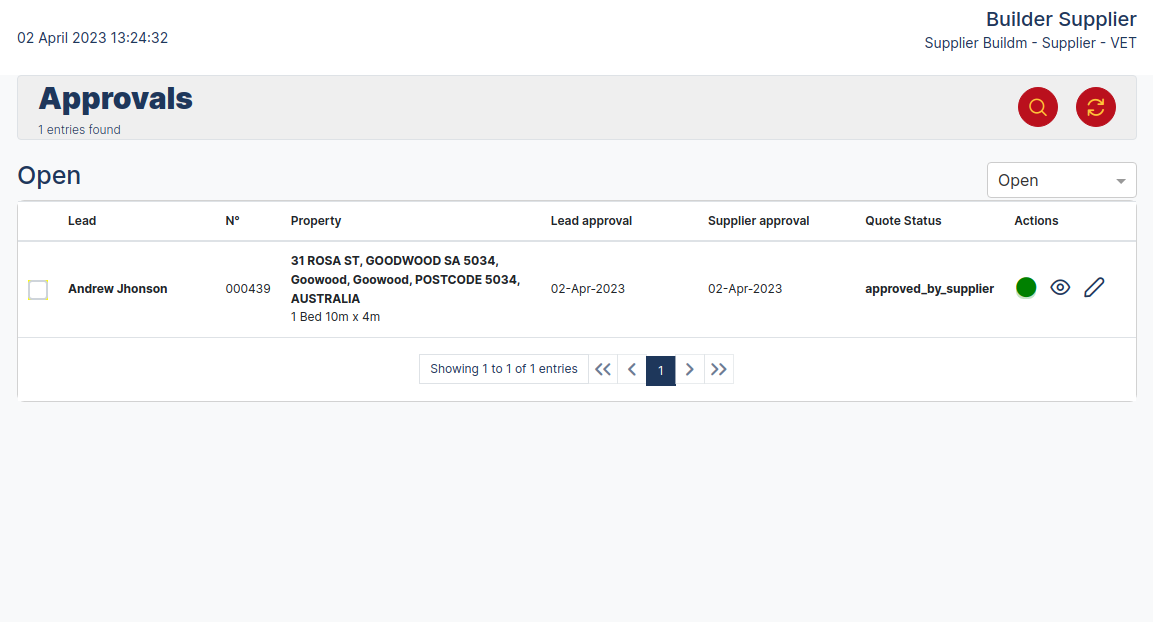
LEAD LIST VIEW
Approvals List View.
Interface components:
- Name of the agency, authenticated user and type of user.
- Date and time.
- Module name, number of records and search, refresh, archive, New Lead buttons.
- Shows current status: open.
- Status: ("Open","Closed","Archived").
- Table with the following fields: Leads, Number Order, Supplier Aproval, Quotes Status.
- Actions: Buttons ("Status","Read","Edit").
Open Approvals 
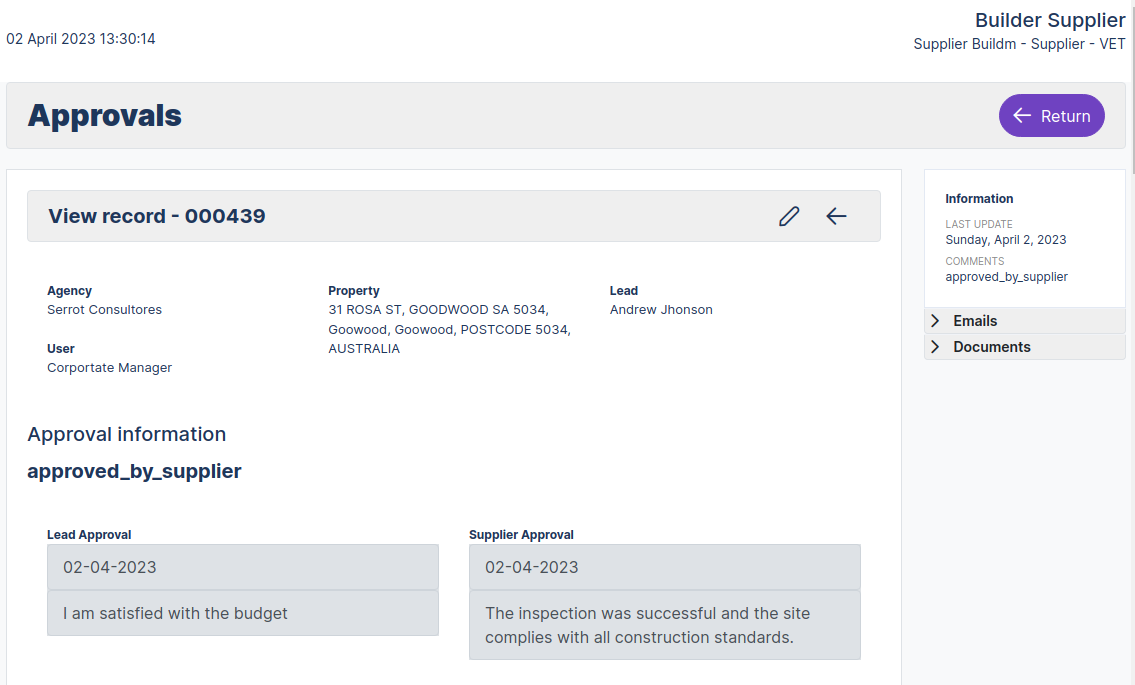
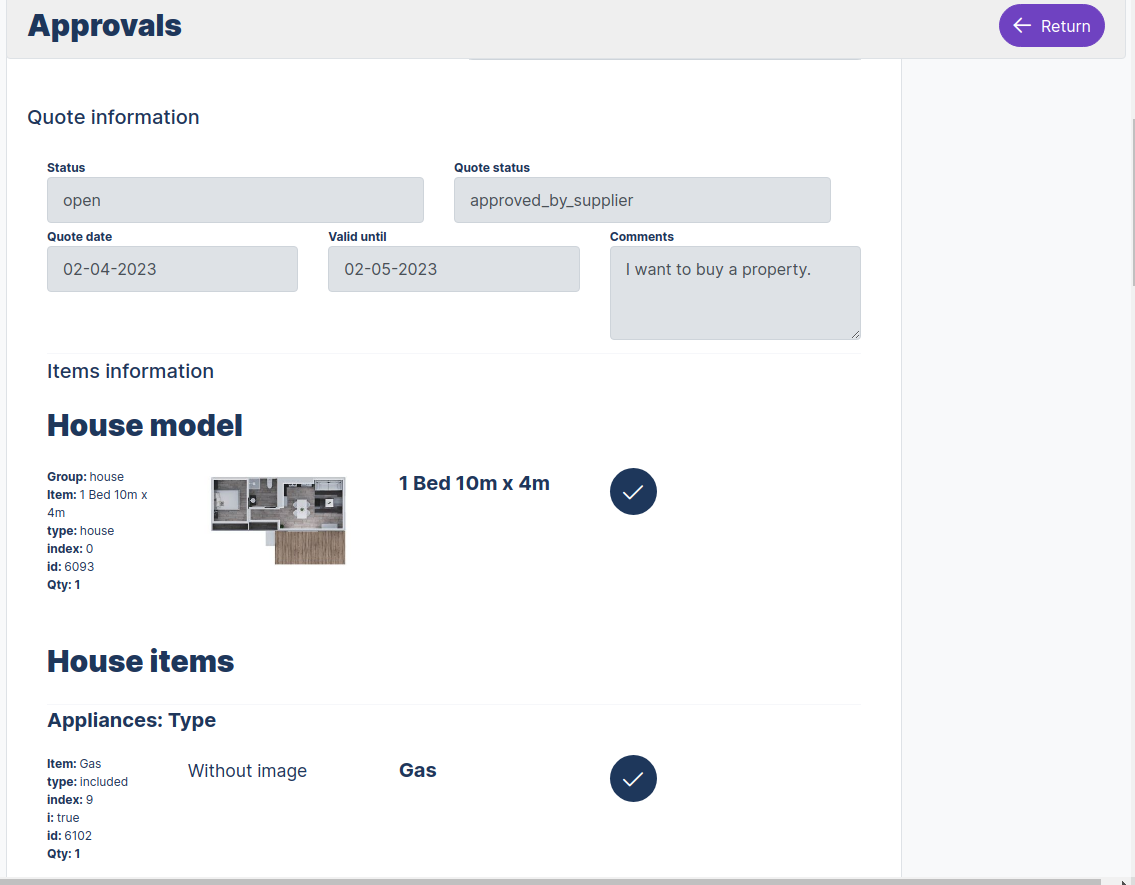
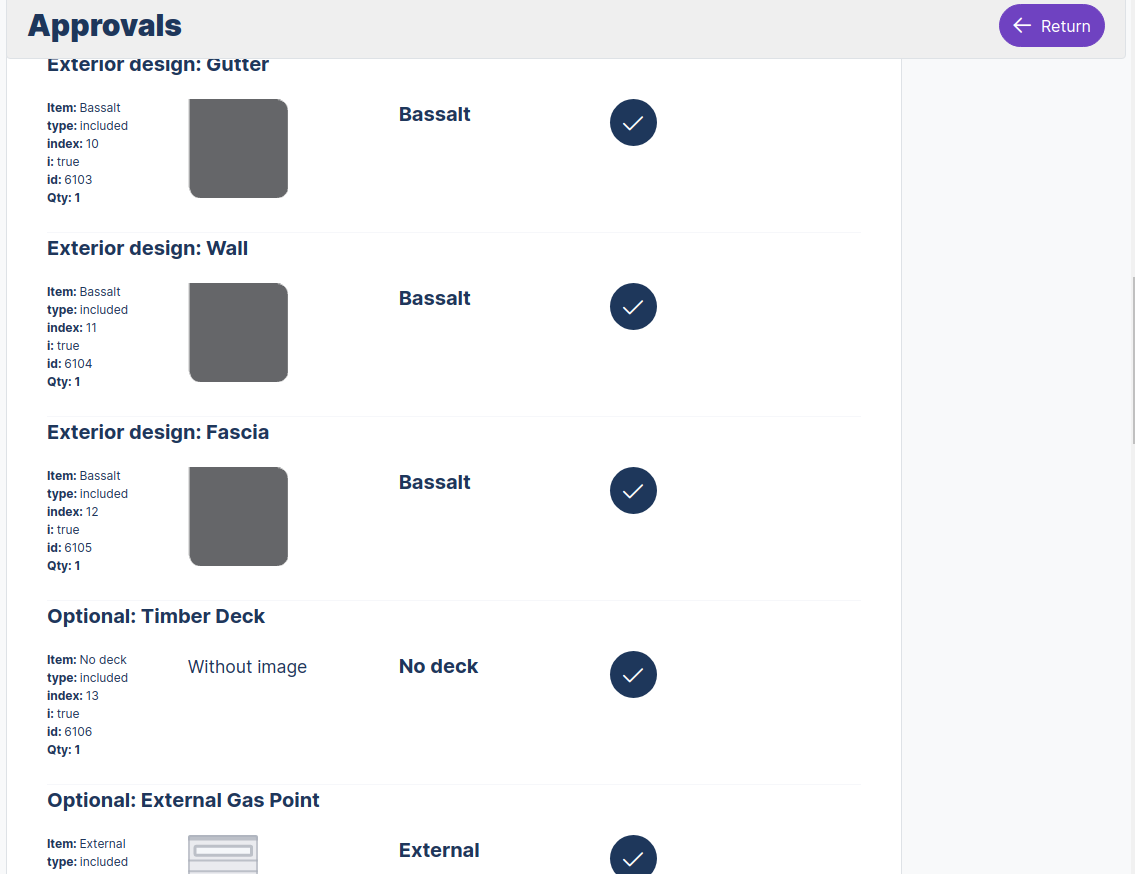
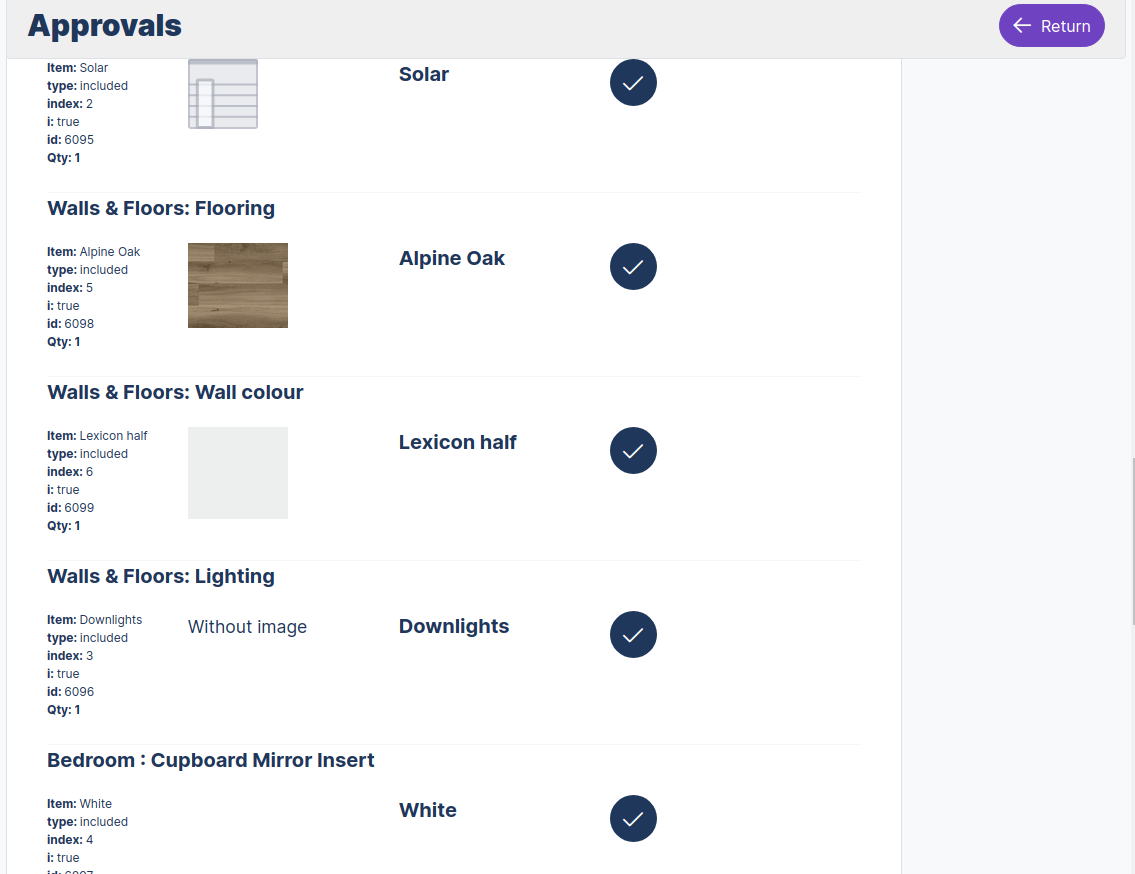
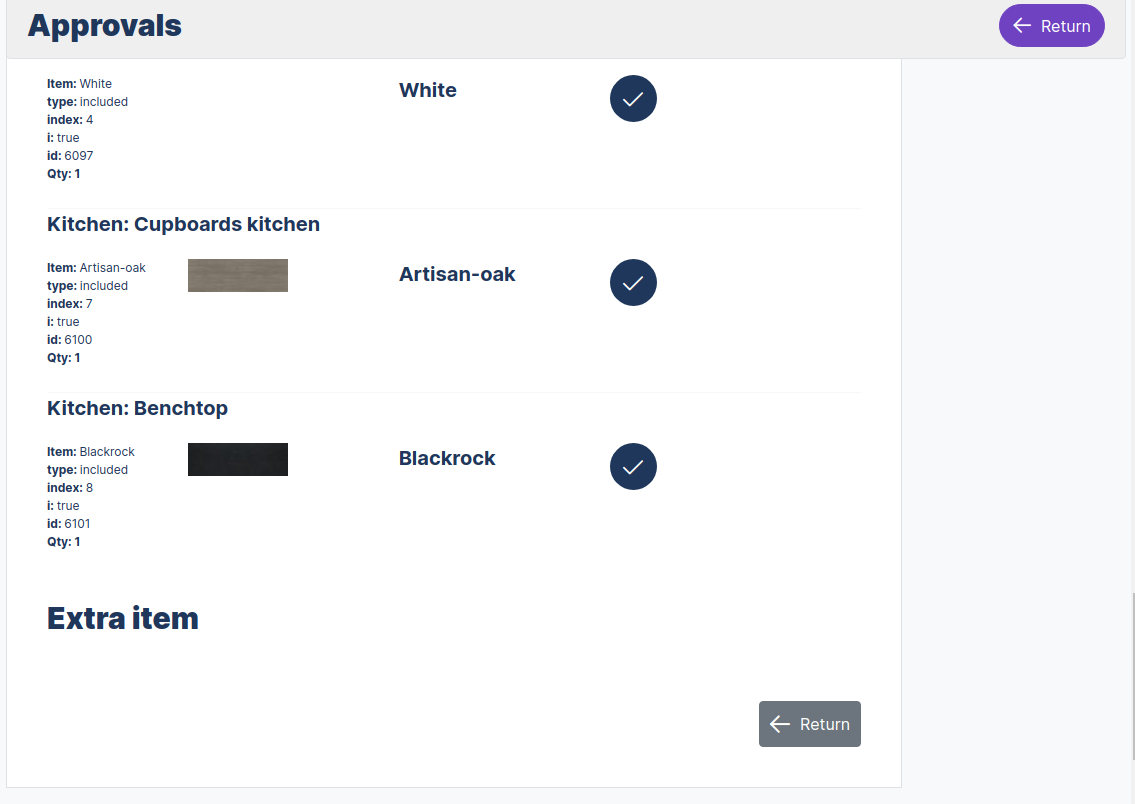
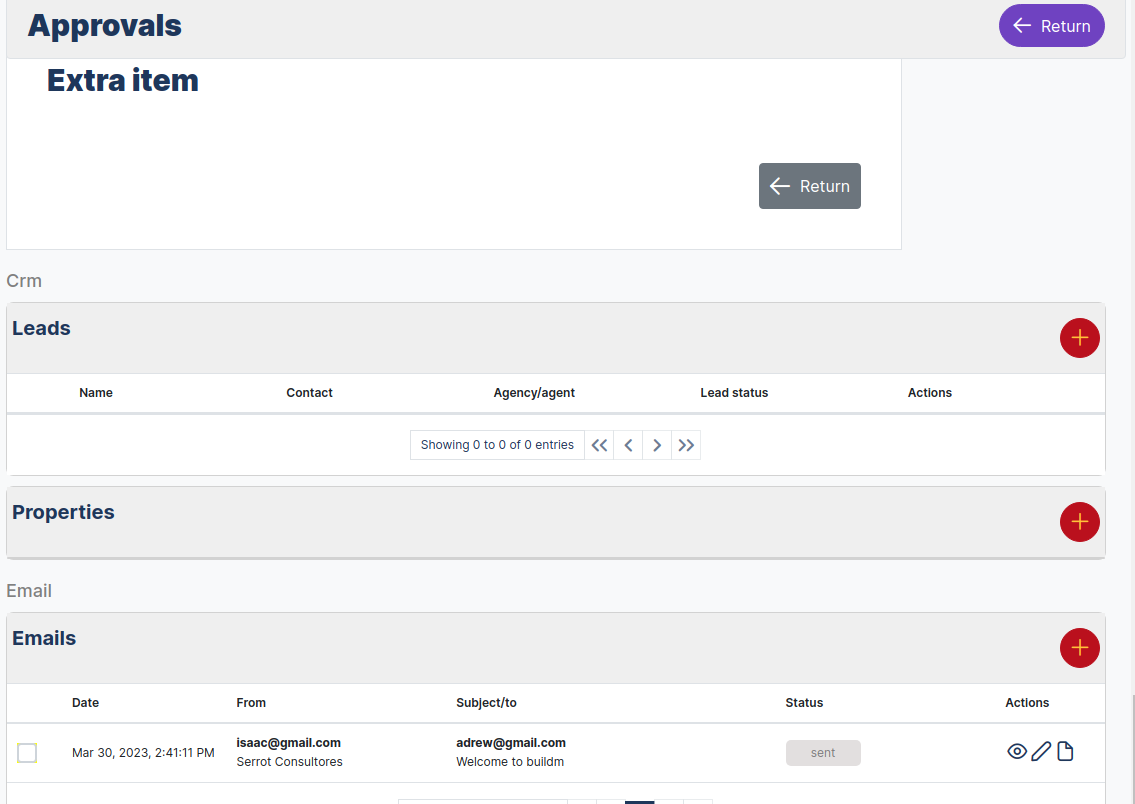
To create a new lead, follow the steps below:
- Navigate to the main dashboard menu and select the Leads link or you can also select the dashboard card with a click.
- Select the new lead button.

- Enter the data in the form.
- Click on the save button.
Edit Approvals 
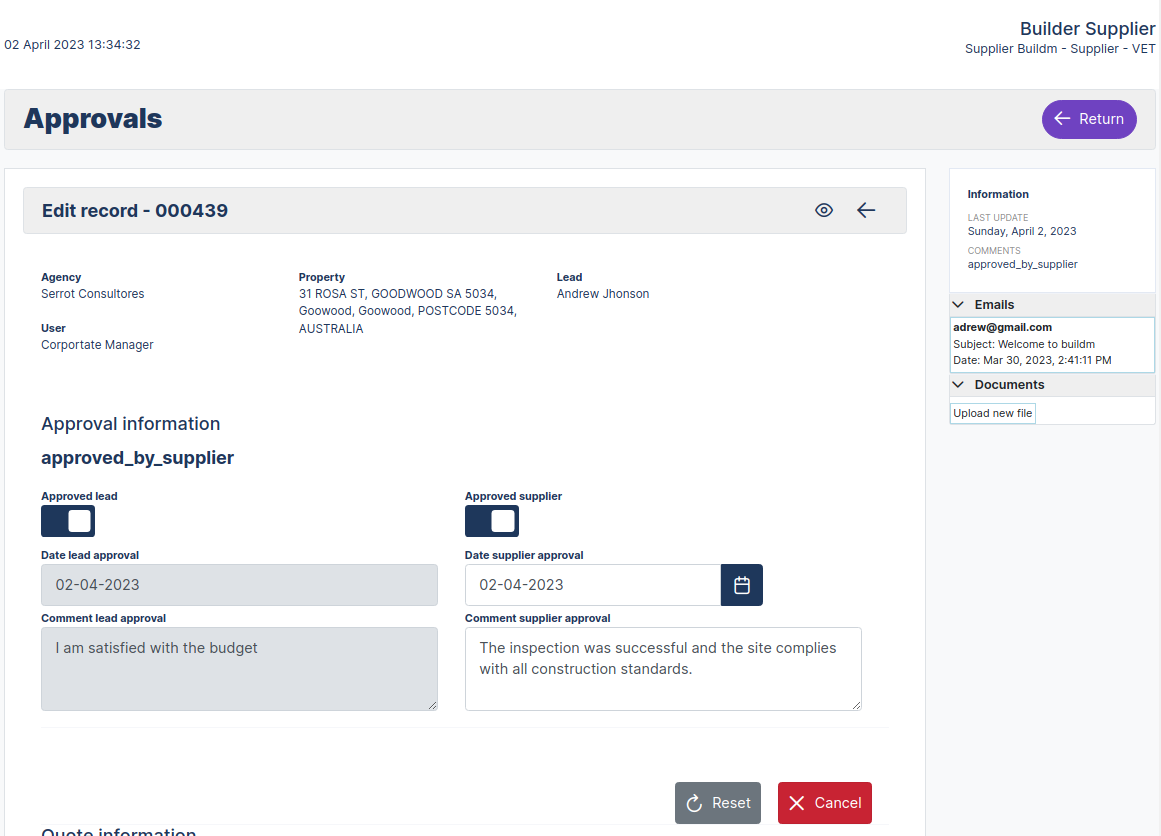
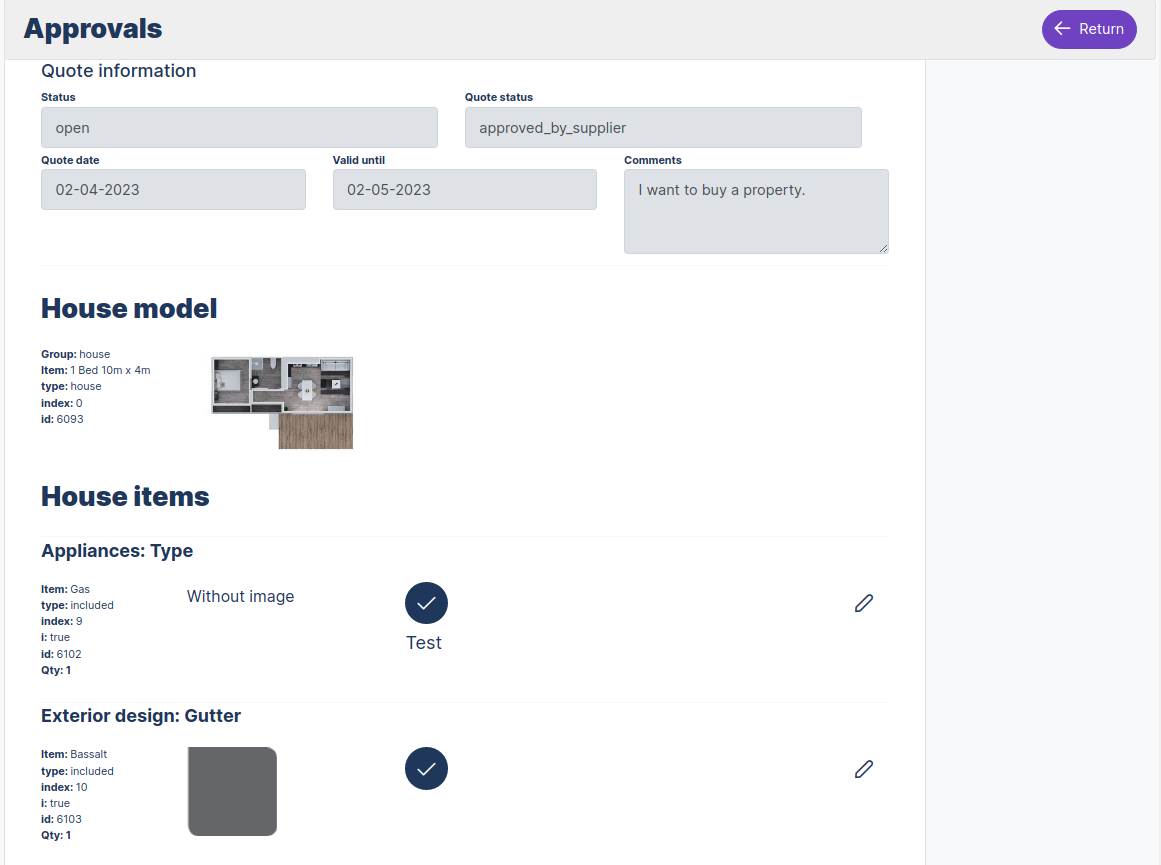
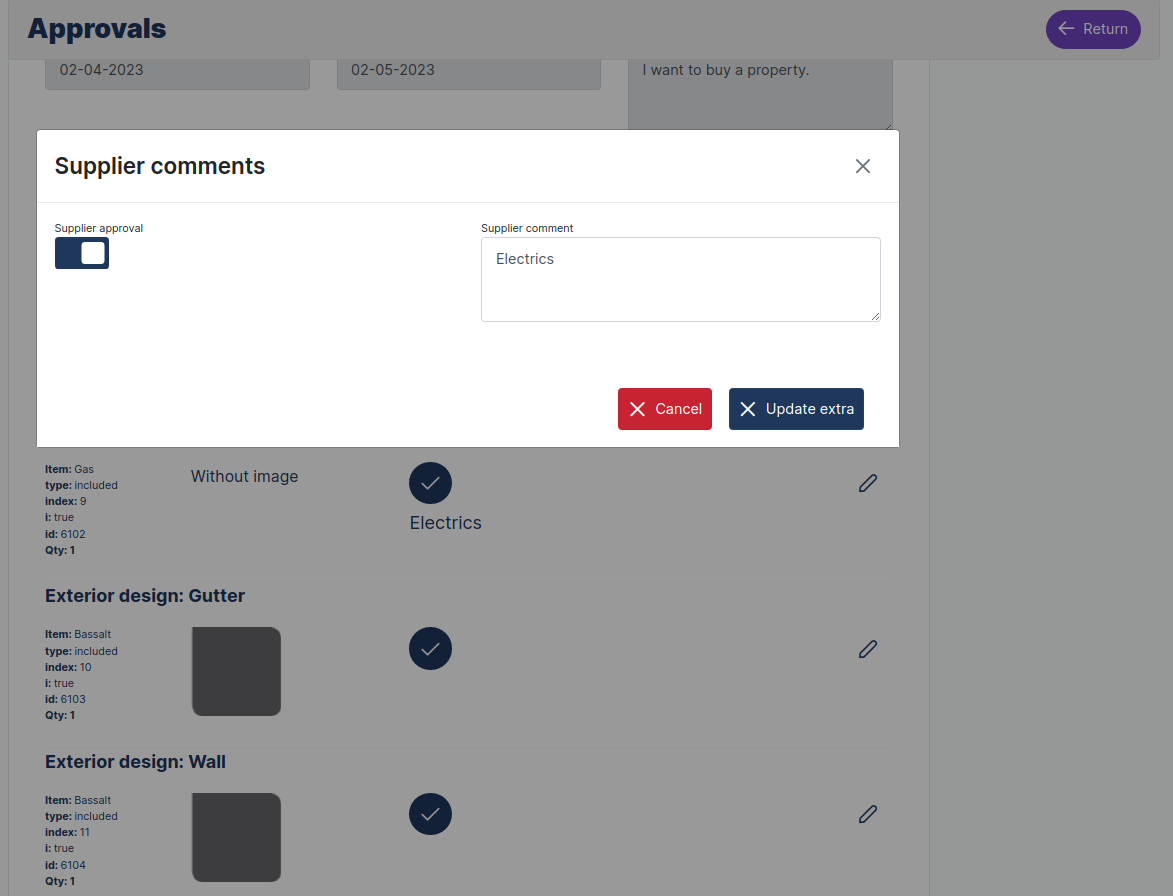
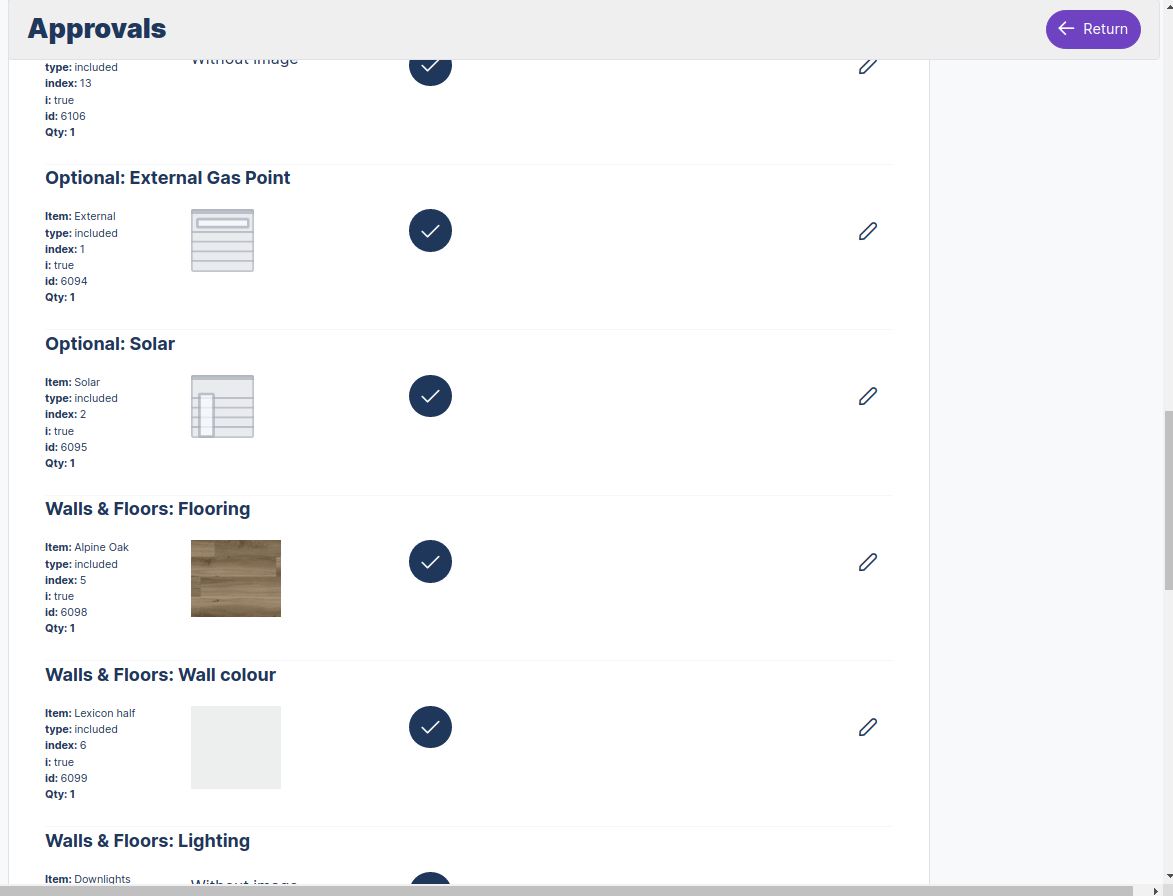
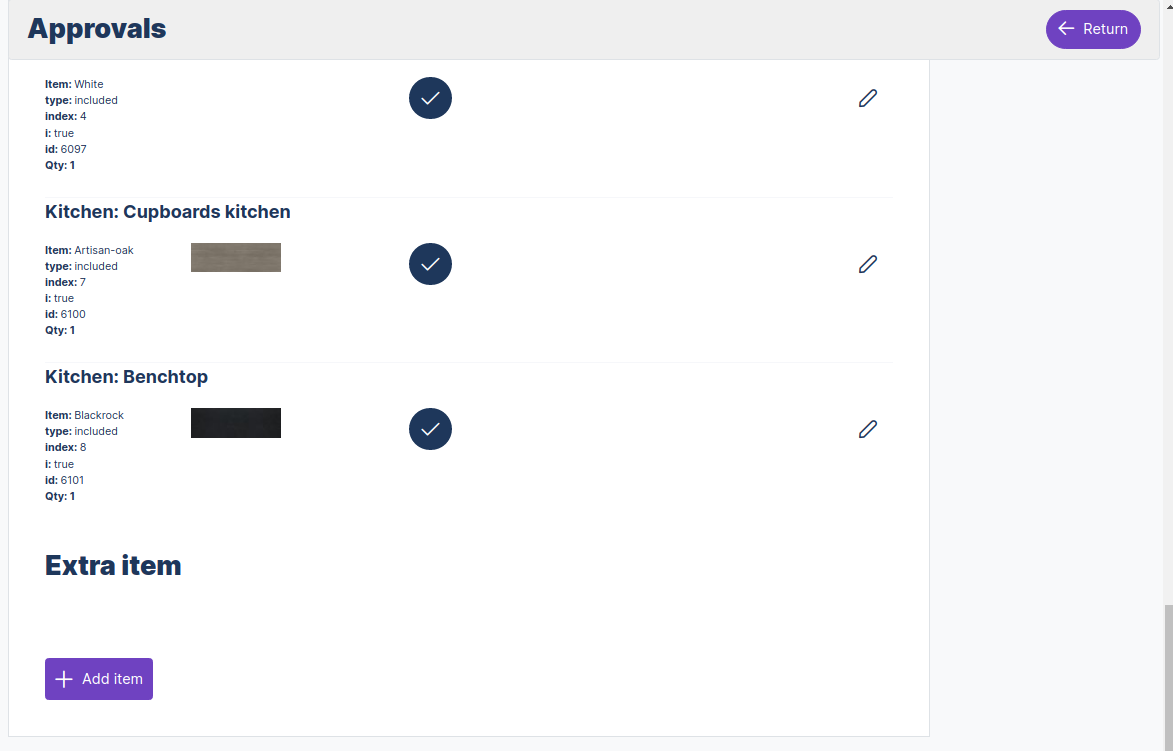
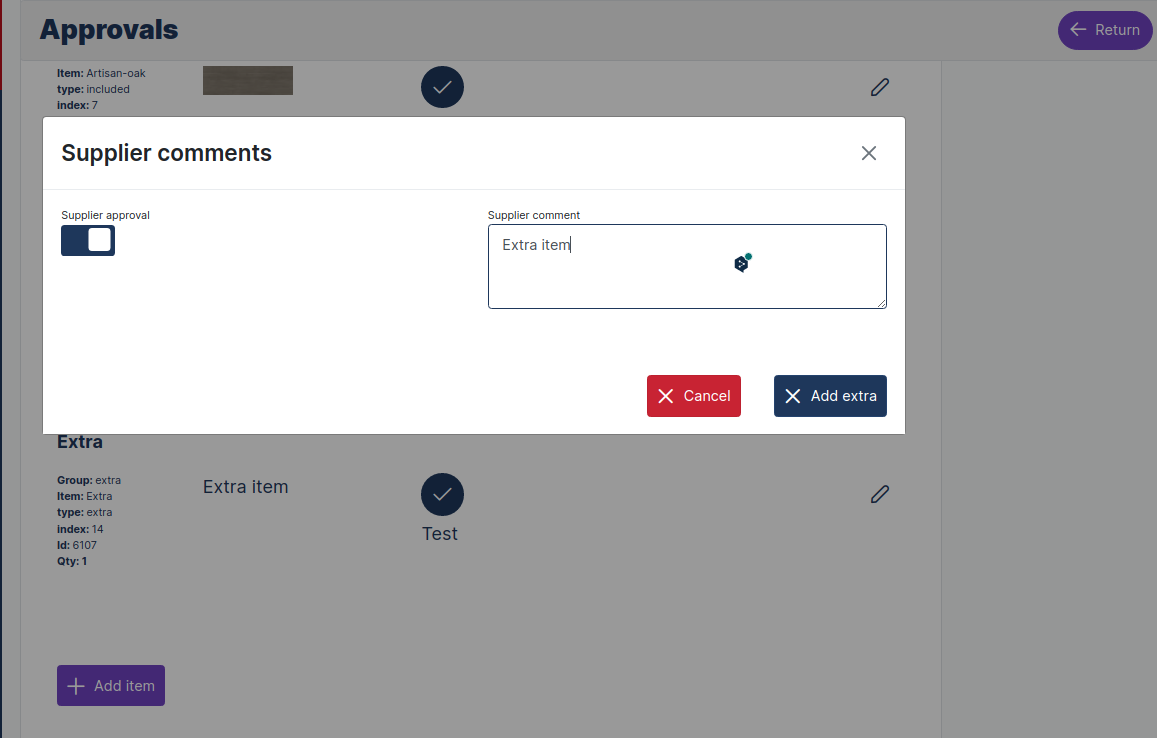
Supplier Additem
###Suppiler Upload file
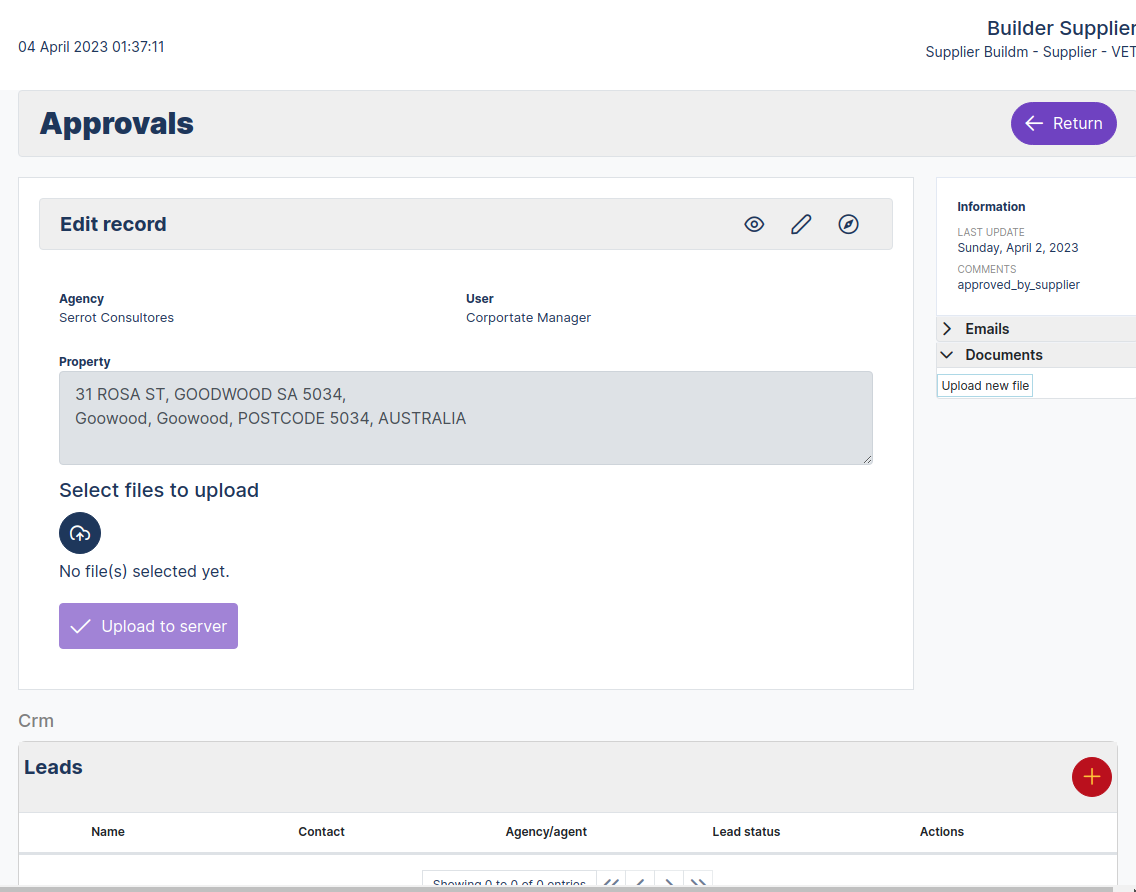
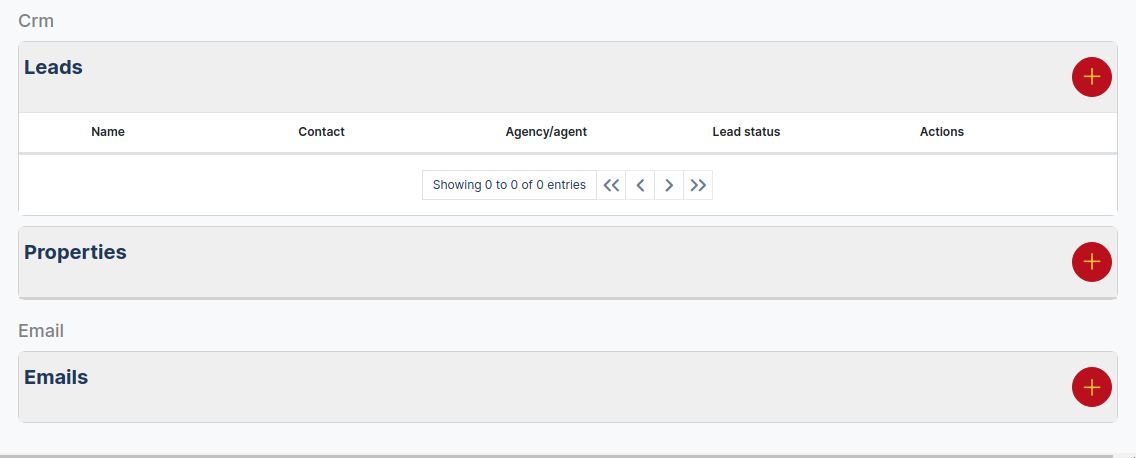
APPROVALS UPLOAD VIEW
Approvals Upload View.
Interface components:
- Name of the agency, authenticated user and type of user.
- Date and time.
- Module name, number of records and search, refresh, archive, New Lead buttons.
- Shows current status: open.
- Status: ("Open","Closed","Archived").
- Table with the following fields: Leads, Number Order, Supplier Aproval, Quotes Status.
- Actions: Buttons ("Status","Read","Edit").
Create a New Orders
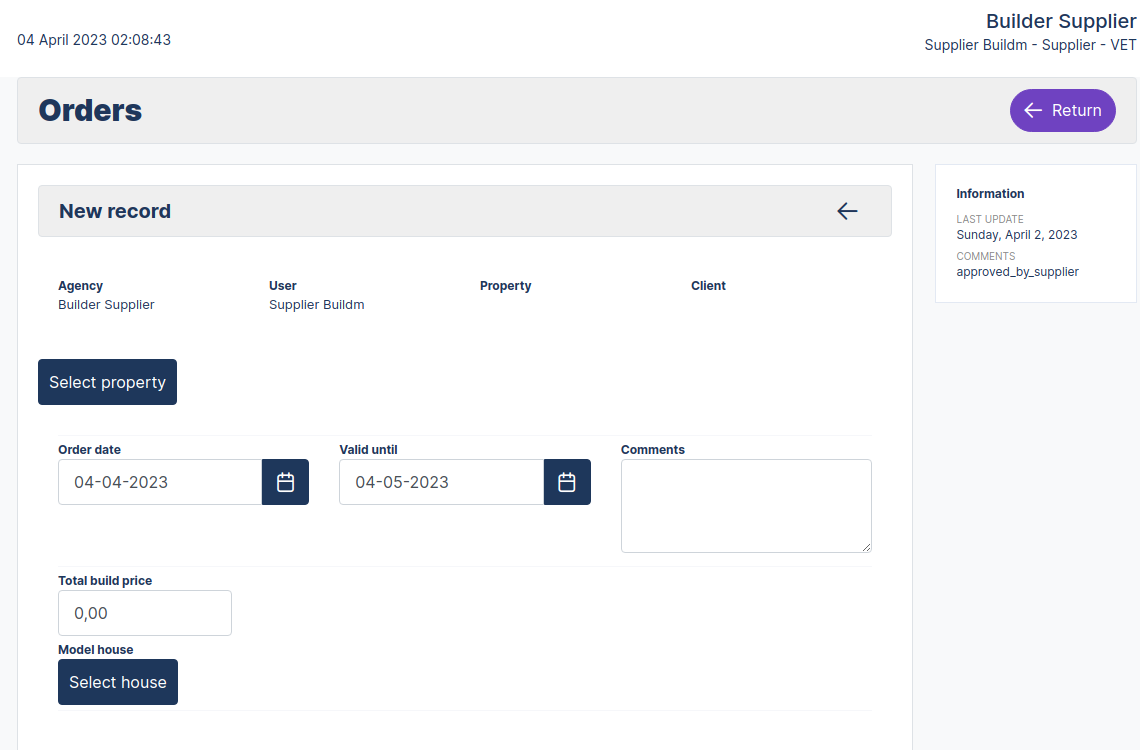
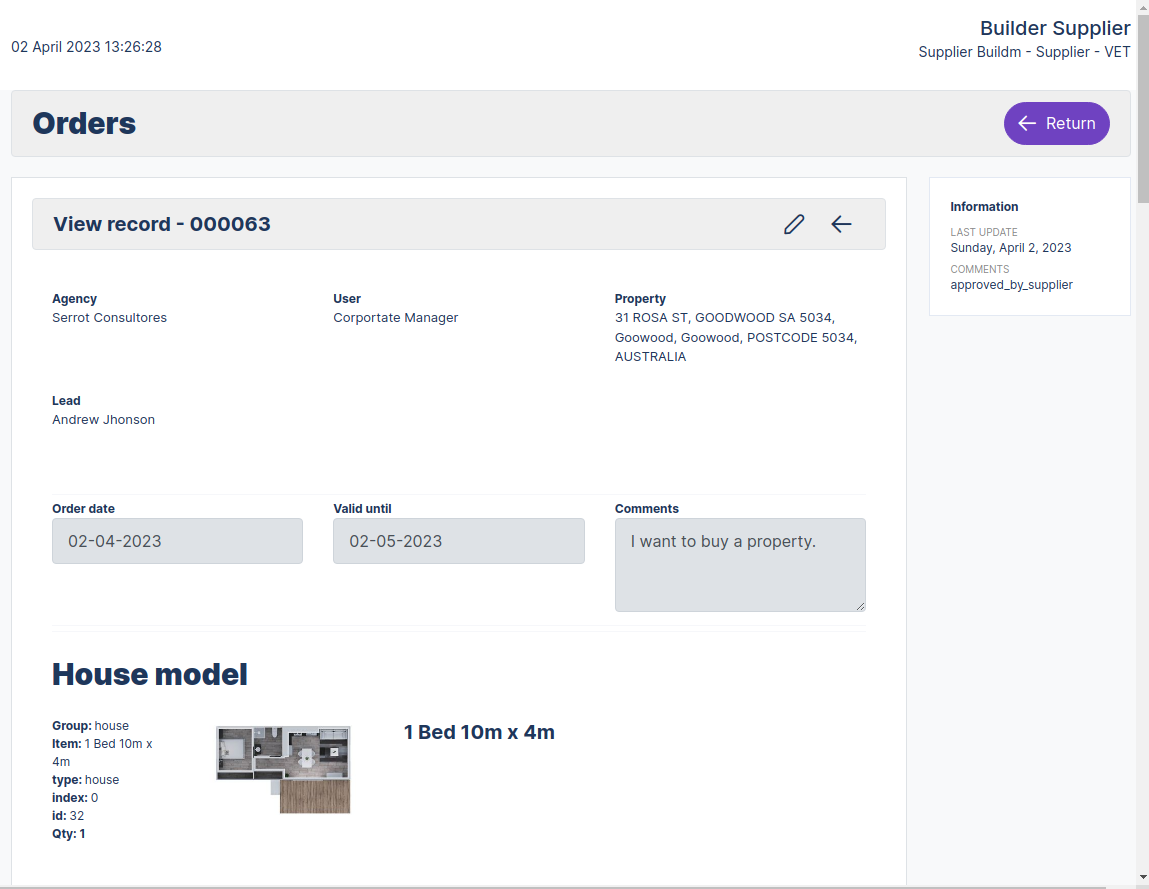
Form to create a new construction order
::
Create a new Lead
CREATE A NEW ORDER
To create a new lead, follow the steps below:
- Navigate to the main dashboard menu and select the supplier link or you can also select the dashboard card with a click.
- Select the new lead button.

- Enter the data in the form.
- Click on the save button.
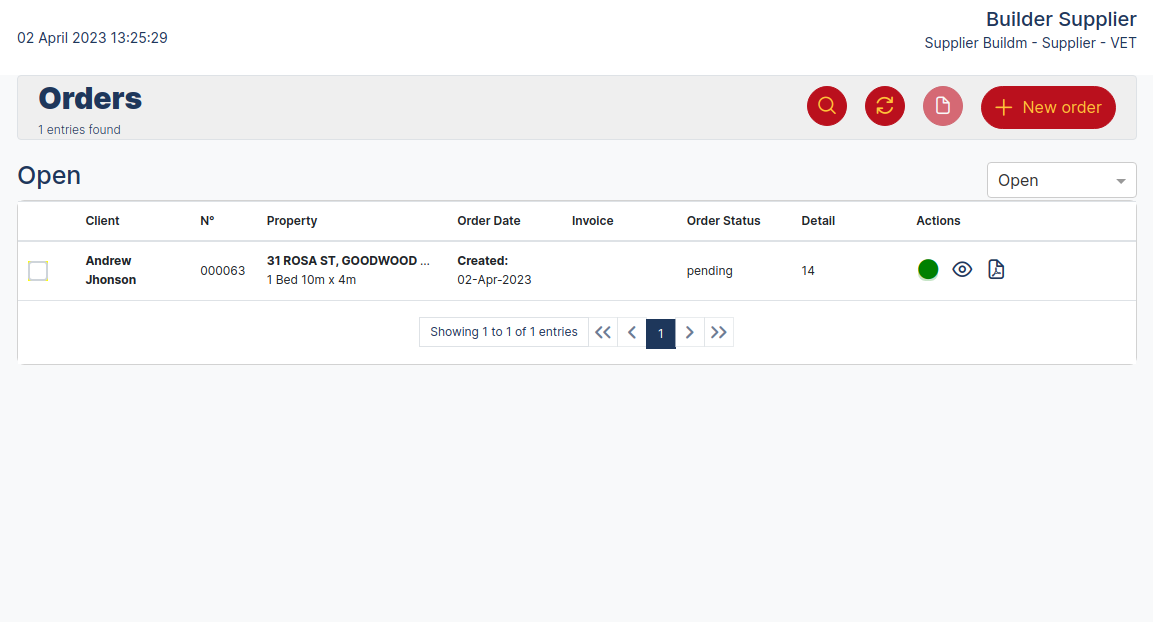
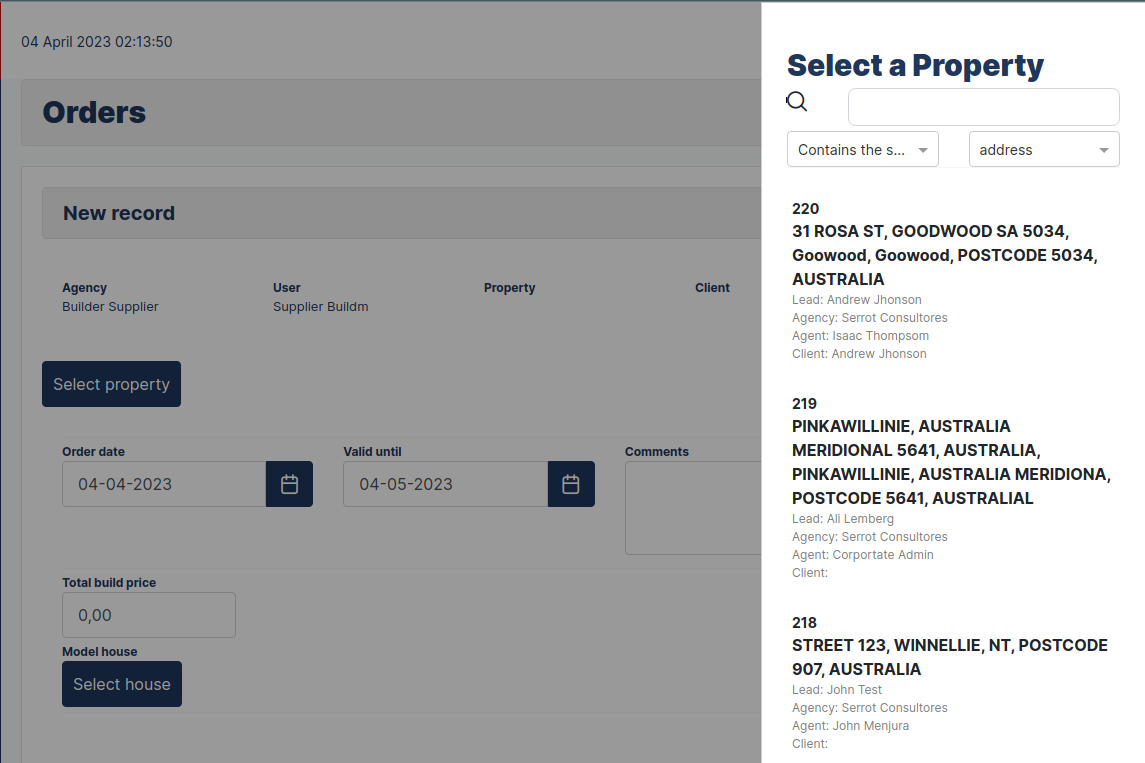
Select property
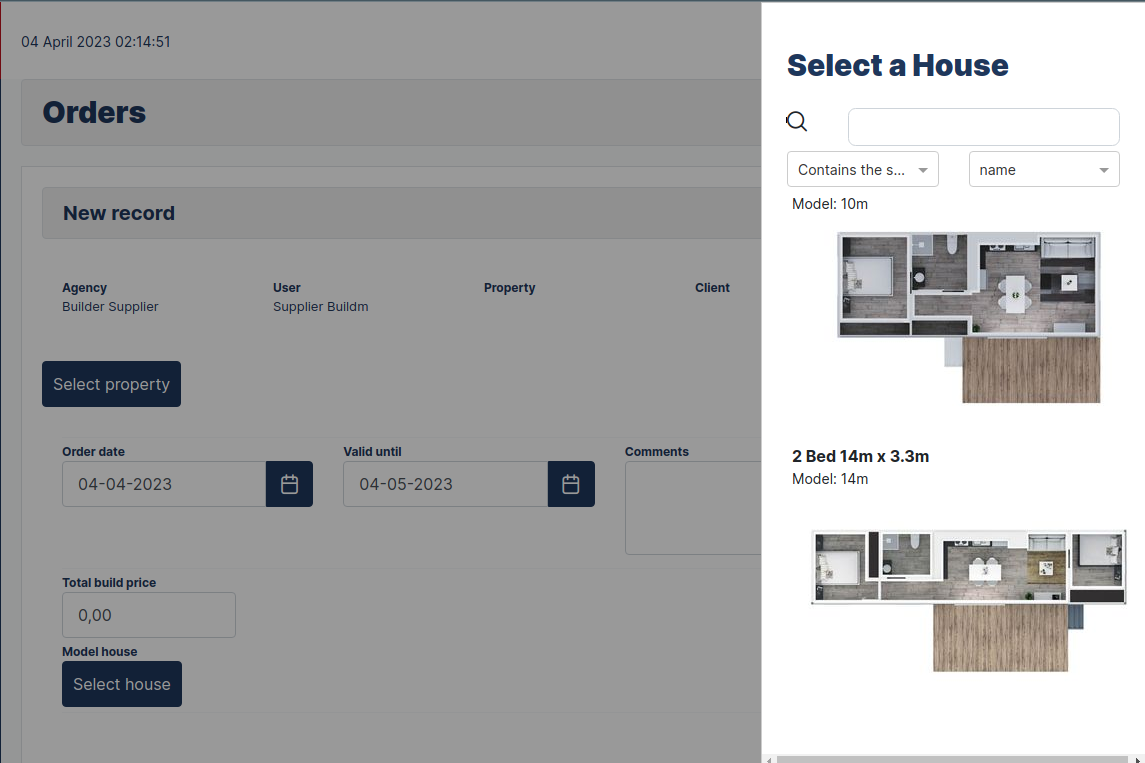
Select House
Exit the system
To exit the application navigate to the main menu and click on the logout option.